Firmware Flashing Guide
This directory contains prebuilt merged firmware images that can be flashed directly to the RYMCU BigSmart AI assistant. The images are organized by source: RYMCU official, Xiaozhi AI official, and Espressif official.
Firmware Images
| File | Source | Description |
|---|---|---|
rymcu-V2.3.28-merged.bin | RYMCU official | Recommended merged firmware image packaged by RYMCU for BigSmart |
rymcu-V2.3.19-merged.bin | RYMCU official | Legacy fallback merged firmware image |
xiaozhi-esp32-merged.bin | Xiaozhi AI official | Merged firmware image for the 78/xiaozhi-esp32 upstream ecosystem |
espressif-brookesia-merged.bin | Espressif official | Merged firmware image for the espressif/esp-brookesia upstream ecosystem |
rymcu-V2.3.28-merged.bin is synced from the prebuilt V2.3.28 merged image under E:\RYMCU\xiaozhi. It includes Weather, Calendar, Codex Status, Smart Home MQTT/Endpoint overview support, the NES launcher, and NES dedicated boot mode. This prebuilt image does not include the later NES display, audio, and volume-control changes from the 2026-07-28 commit b1d1c08.
Before Flashing
Prepare the following items:
- RYMCU BigSmart AI assistant.
- USB Type-C cable that supports data transfer.
- A Windows computer and any flashing tool that supports ESP32-S3.
Put the device into download mode before flashing:
- Hold the BigSmart Boot button.
- Hold the power button to turn on the device.
- Release all buttons after the device enters download mode.
- Check the serial port in Device Manager, such as
COM8.
All flashing methods below require the device to be in download mode first. After flashing, power on the device again to run the new firmware.
Offline Flashing
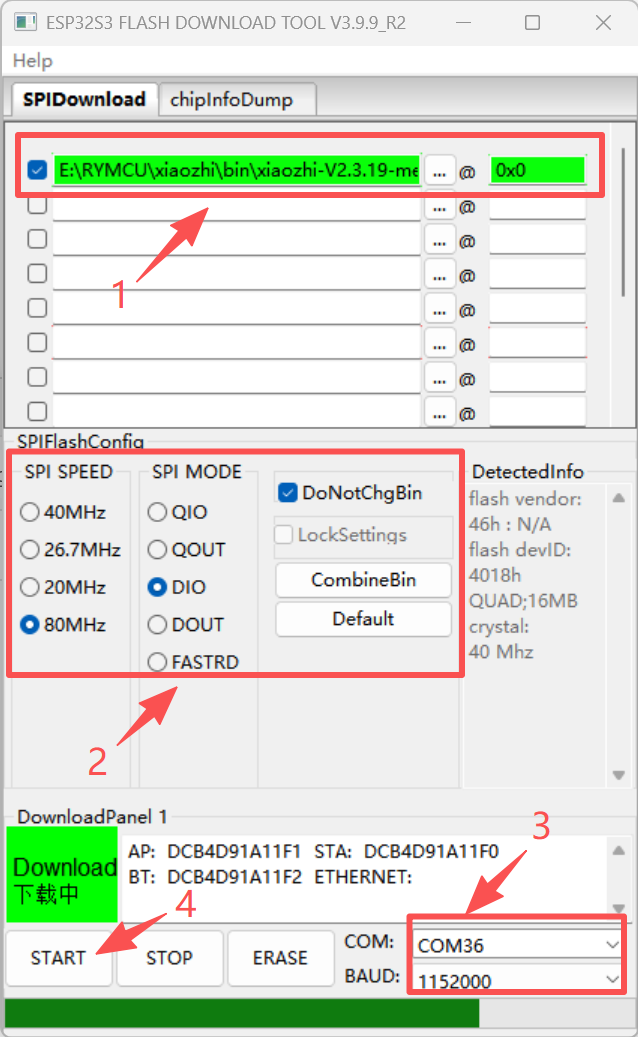
Choose any one of the following offline tools. All merged firmware images must be written to Flash offset 0x0.
Espressif Flash Download Tool
Flash Download Tool is Espressif's official offline flashing utility. It is suitable for manually selecting the firmware image and writing it through a graphical interface.
Download link: Flash Download Tool
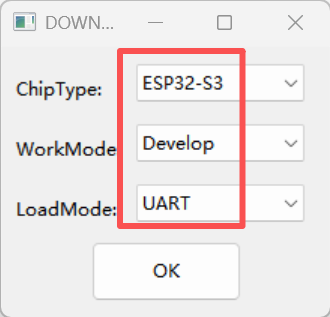
After downloading and extracting the package, run the .exe file, then select the chip, serial port, flash address, and firmware image as shown in the tool.
RYMCU Serial Debug Assistant
RYMCU Serial Debug Assistant provides a graphical serial flashing workflow for quickly selecting and writing a merged firmware image to BigSmart.
Download link: RYCOM 2.6.3
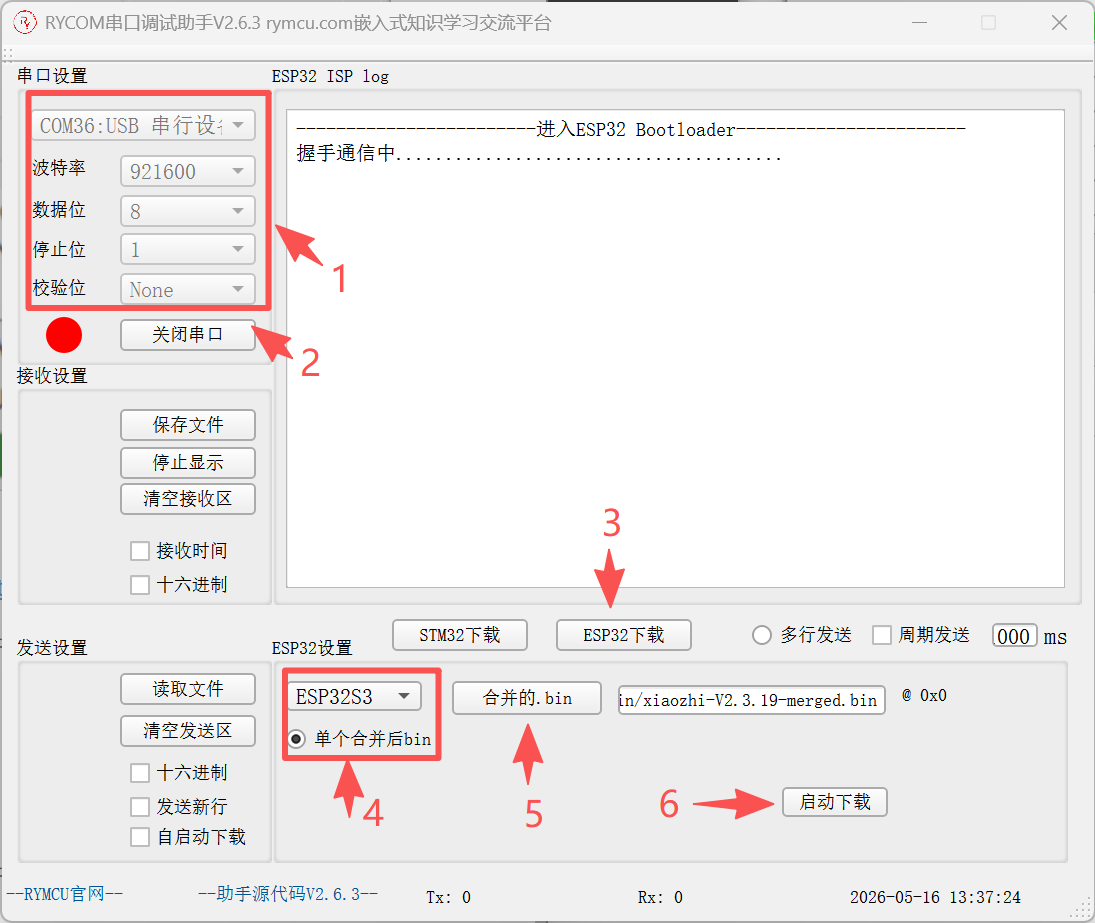
After installation, open the tool, select the BigSmart serial port, choose the firmware image, and start flashing as shown below.
RYMCU RODAK Tool
RODAK is a firmware download tool provided by RYMCU. It can also flash BigSmart merged firmware images.
Download link: RODAK Releases
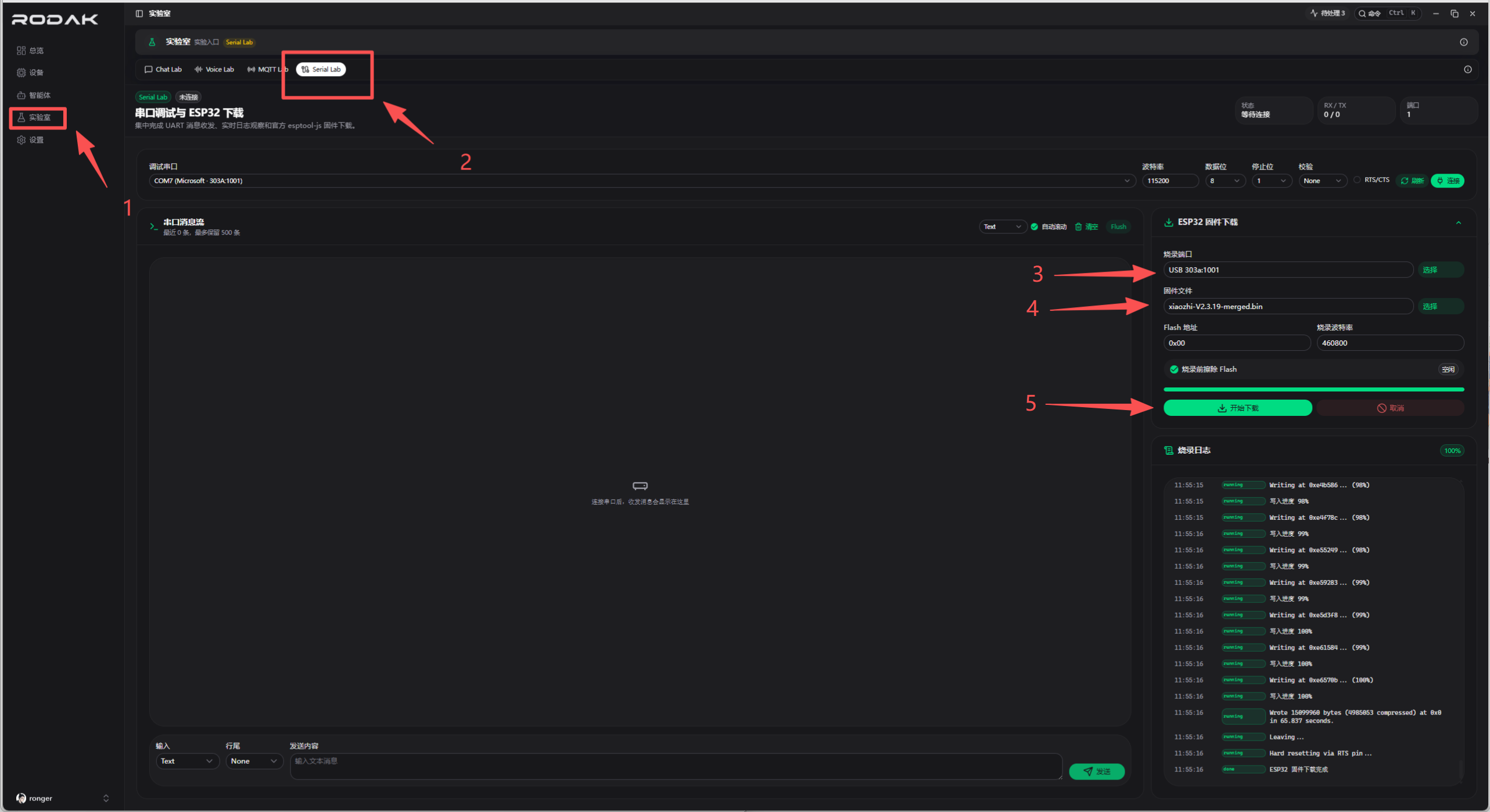
After installation, open the tool, select the BigSmart serial port, choose the firmware image, and start flashing as shown below.
Online Flashing
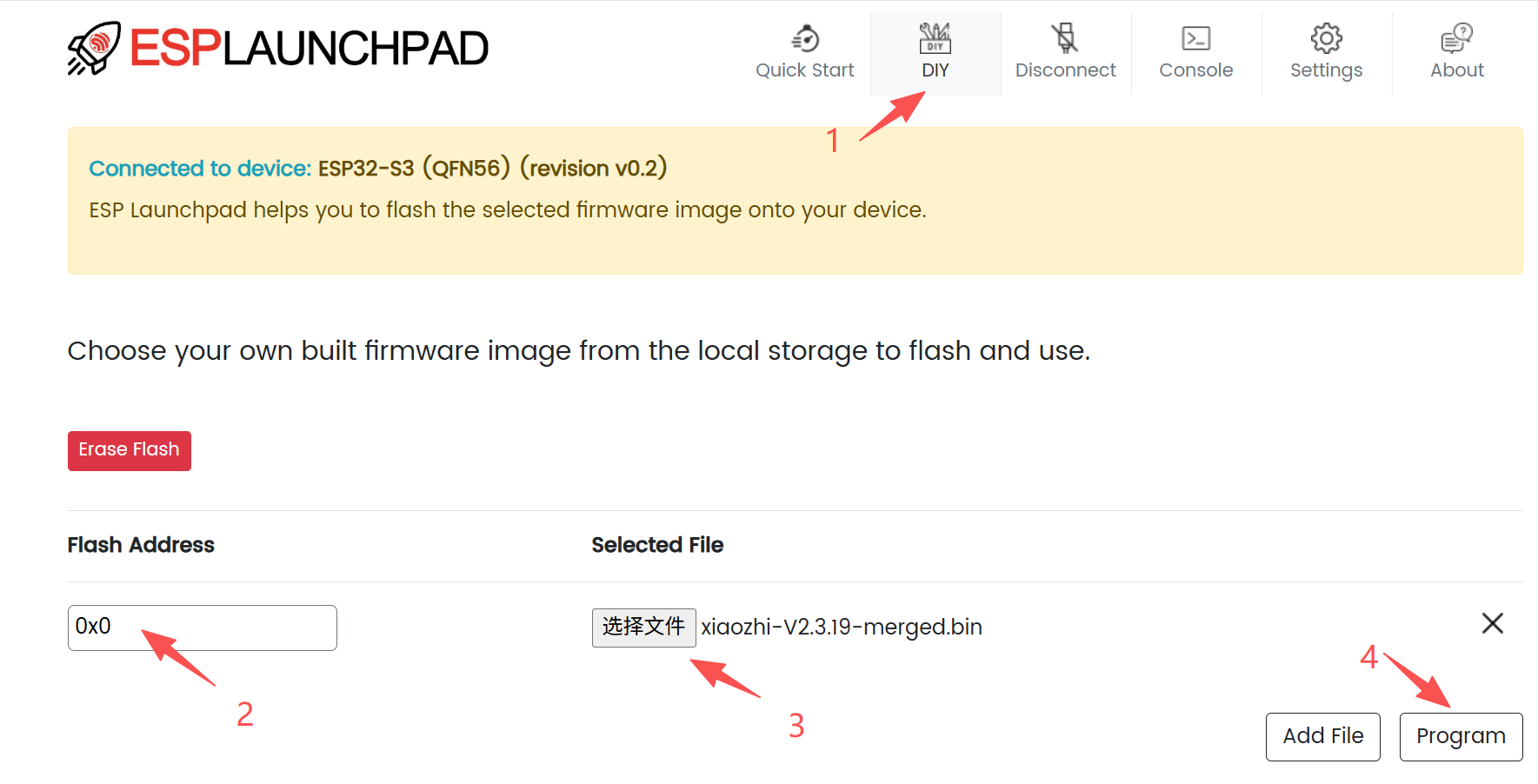
Espressif ESP Launchpad
ESP Launchpad is Espressif's official web flashing tool. It can connect to the serial port and write firmware directly from the browser.
Online flashing link: ESP Launchpad
Steps:
- Open the page and click
Connect. - Select the BigSmart serial port in the browser's port list and connect.
- Click
DIY. - Set the flash address to
0x0. - Select the merged firmware image to flash.
- Click
Programto start flashing.
Check After Flashing
After flashing, the device restarts automatically. In a normal startup:
- The screen turns on and enters the Launcher.
- The home screen shows
rymcu-bigsmartand the firmware version. - Serial logs print
RYMCU BigSmart - Starting.... - If an SD card is inserted, logs show
SD card mounted at /sdcard.
Troubleshooting
| Problem | Solution |
|---|---|
| Serial port not found | Use a data-capable USB cable and check drivers/device manager |
| Flashing fails | Re-enter download mode, close any serial terminal using the port, and retry |
| No display after flashing | Confirm the image was written at 0x0, power-cycle the board, and check power |
| Wi-Fi cannot connect | Use 2.4G Wi-Fi and reconfigure the network in Settings |